
Efficient financial management is the cornerstone of success. Microsoft Dynamics GP offers a robust platform for managing your company’s financials, distribution, human resources, manufacturing, inventory, and operations. However, to leverage the full potential of Dynamics GP, integrating external data seamlessly is crucial. This is where Integration Manager comes into play, especially for importing journal entries. In this article, we will guide you through a detailed, step-by-step process on how to set up Integration Manager to import journal entries into Dynamics GP using a .csv file. Whether you’re a seasoned Dynamics GP user or new to the platform, this guide will simplify your data import process, ensuring accuracy and efficiency in your financial management.
Setting up Integration Manager to import journal entries using a .csv file
1. Create a new integration:

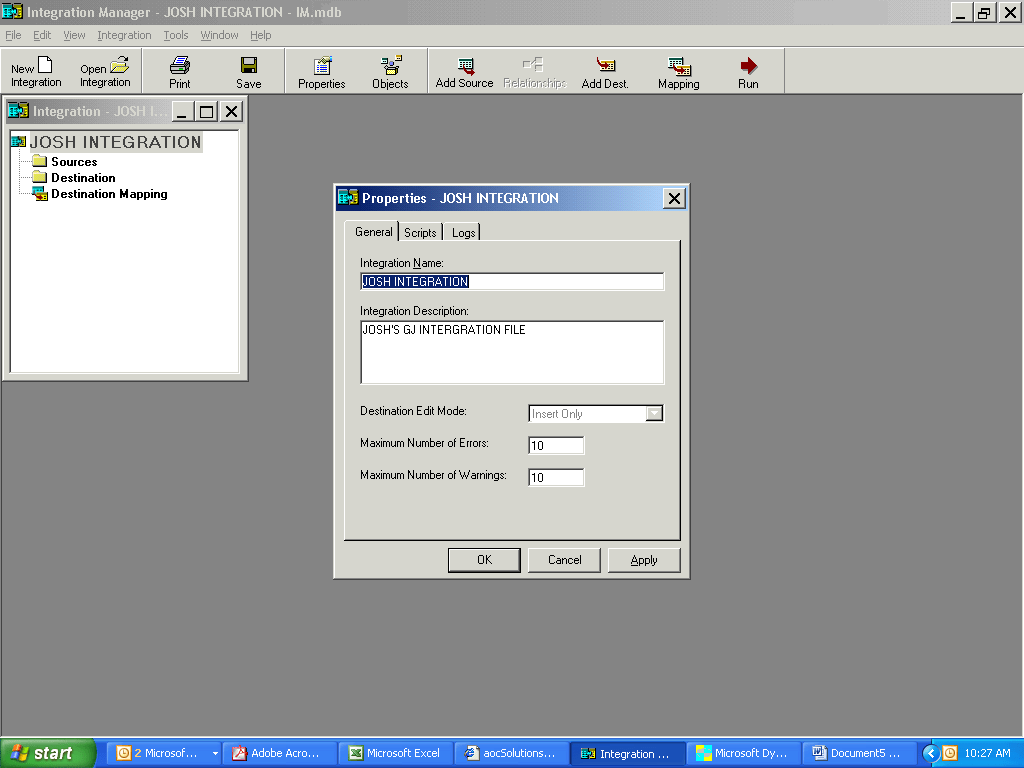
2. Name the integration and provide a brief description:
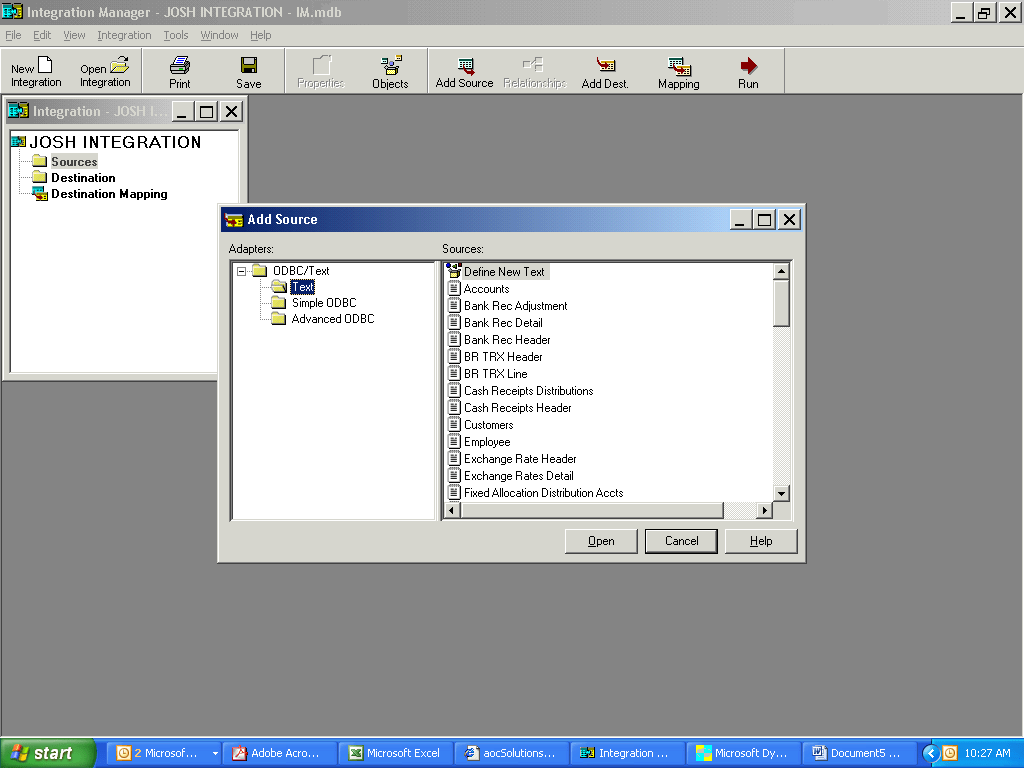
3. Select Add Source and expand ODBC/Text. Choose Text > Define New Text:
4. While in the General tab, name Header file (Josh Header) and point to .csv file. The delimiter is comma and you’ll need to mark First Row Contains Column Names: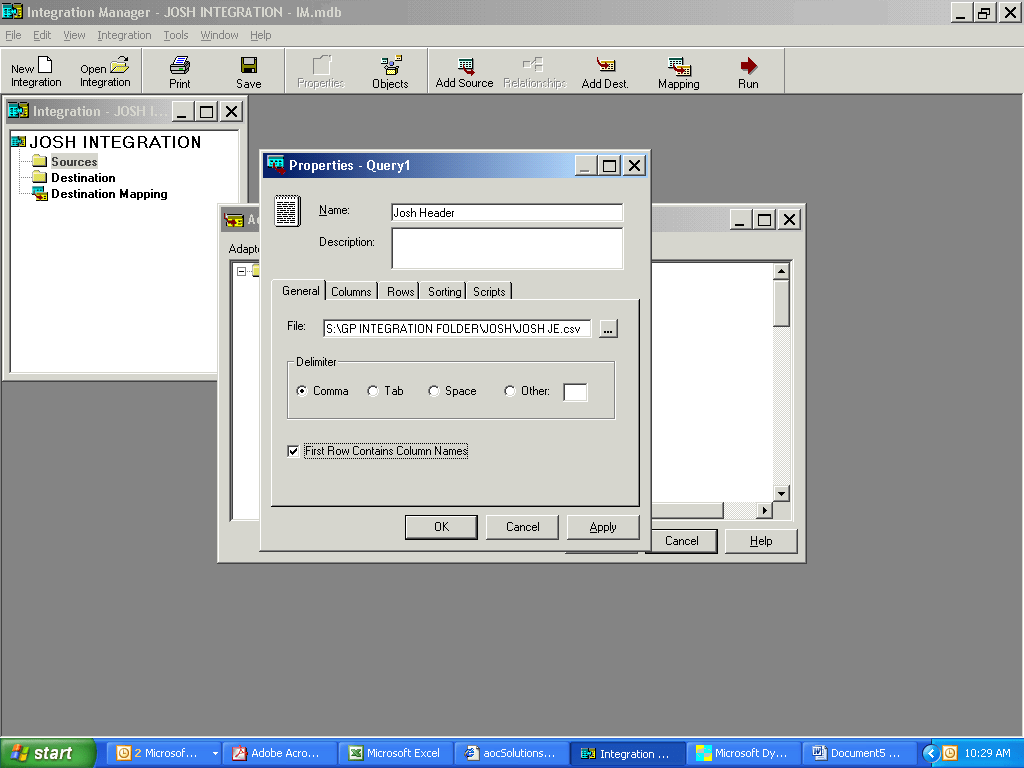
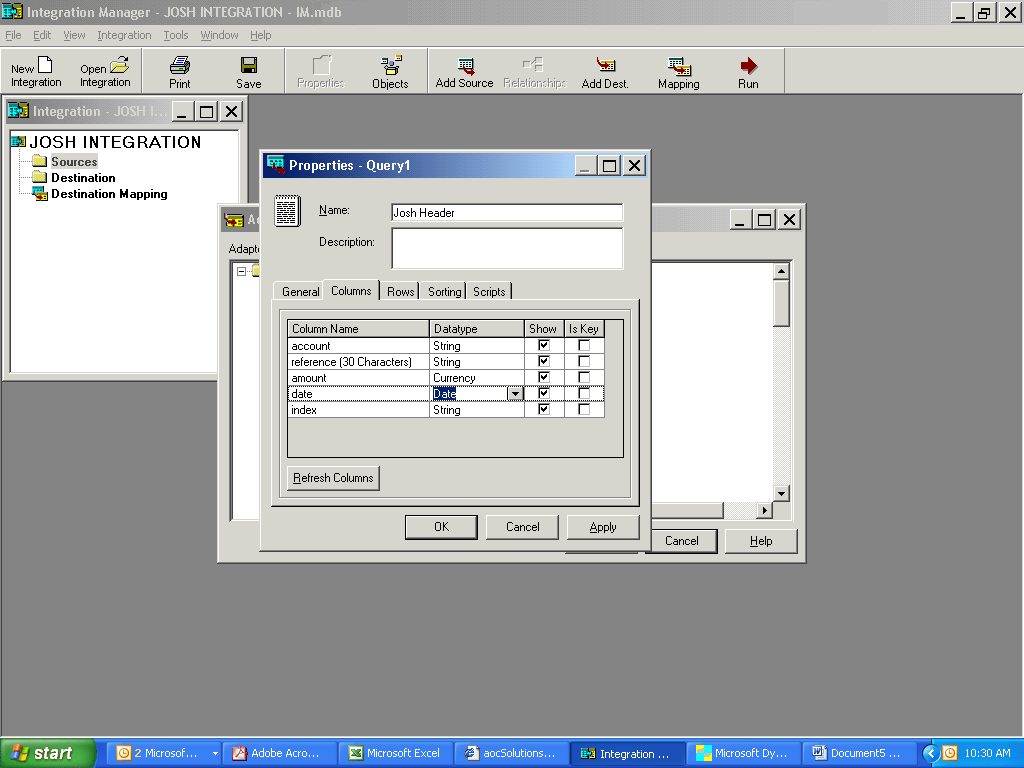
5. Change to Columns tab and change datatype on amount, date:
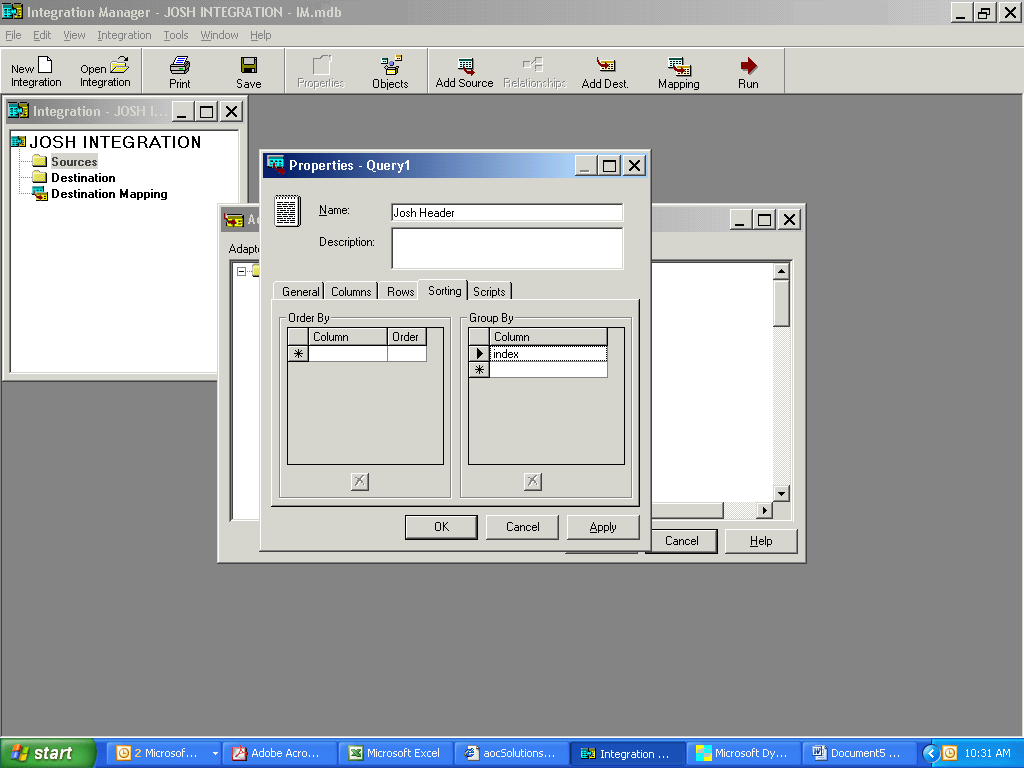
6. Change to Sorting tab and insert index into the Group by column:
7. Add a second Source file by selecting Add Source > ODBC/Text > Text >Define New Text
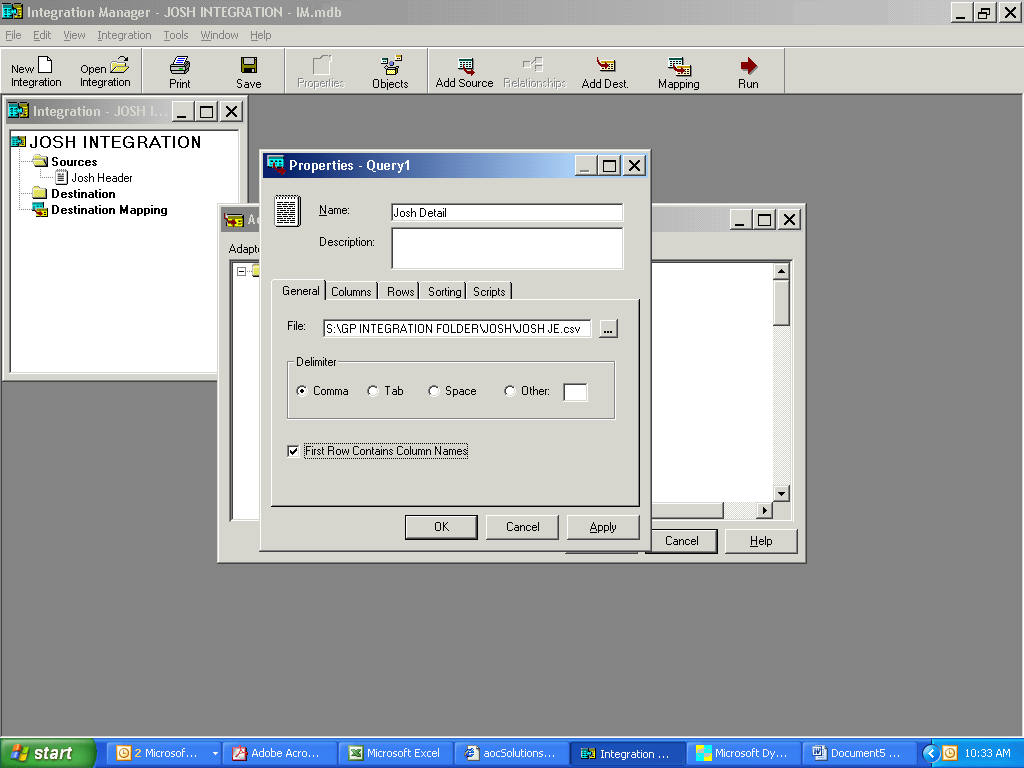
8. While in the General tab, name Header file (Josh detail) and point to .csv file. The delimiter is comma and you’ll mark First Row Contains Column Names again.
9. Change to Columns tab and change datatype on amount, date:

10. Change to the Rows tab and make the following selections: Column = Date,Operator = <>, Value = 0:
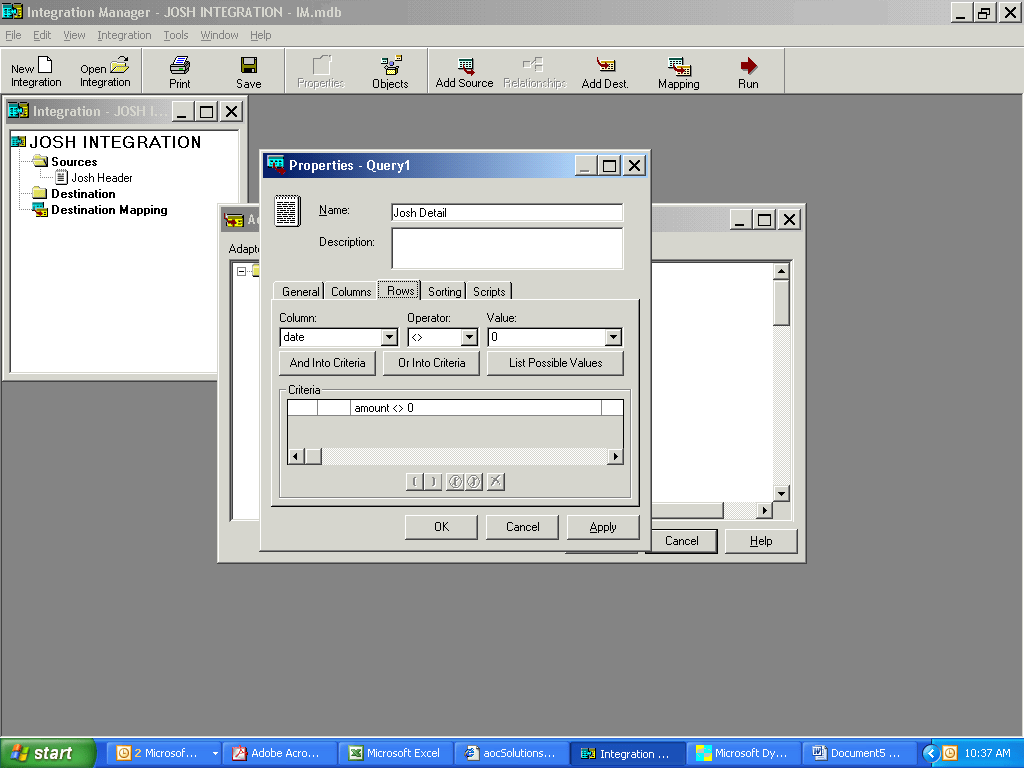
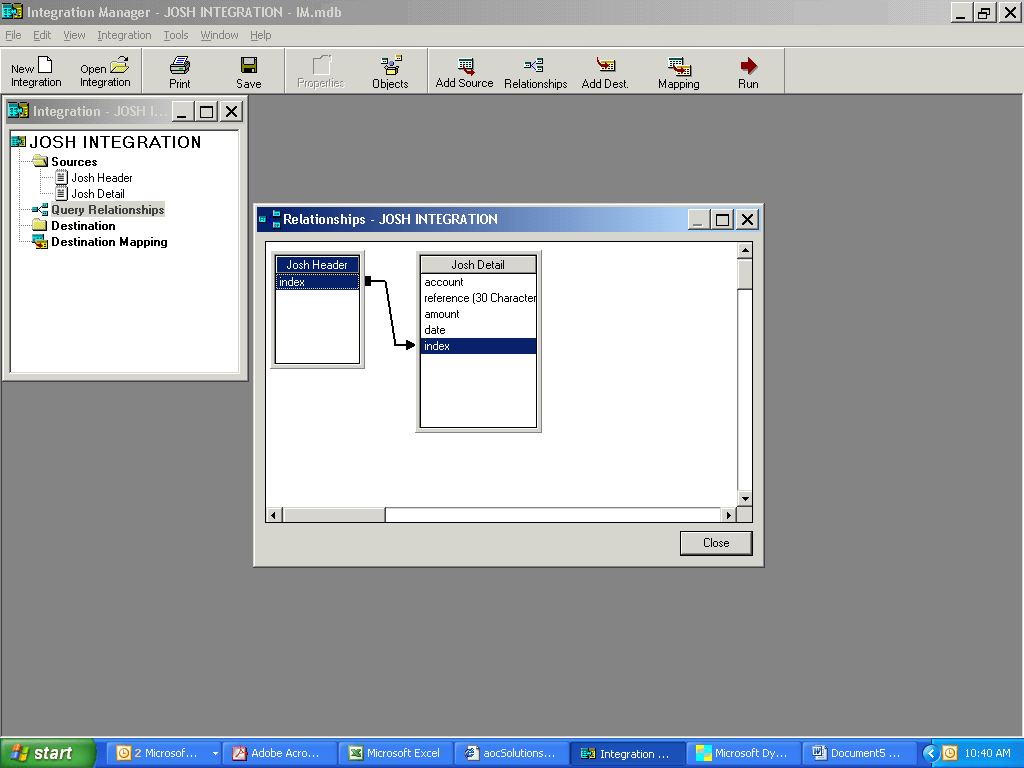
11. Choose the And Into Criteria button:
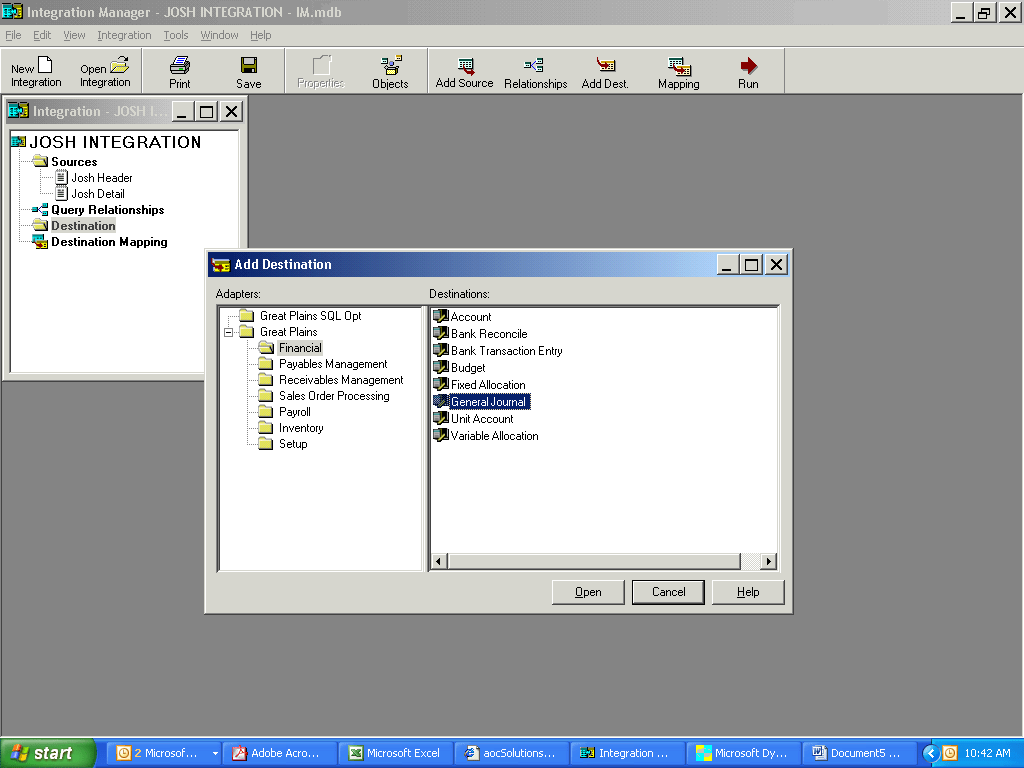
12. Click on Add Destination button. Expand Great Plains > Financial >General Journal:
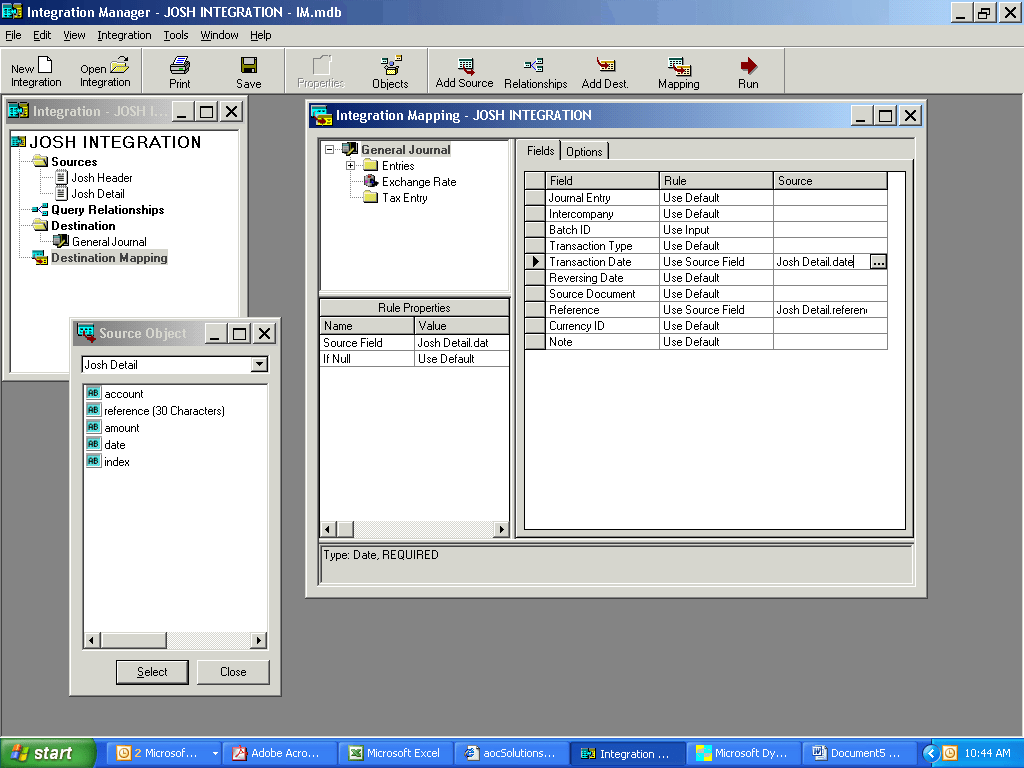
13. Choose Destination Mapping and select the following:
- Batch ID = Use Input (this will prompt the user to enter the batch ID when running the integration)
- Transaction Date = Use Source Field (Choose “…” in the source object and change the dropdown to XXXX Detail, then choose date)
- Reference = Use Source Field (Choose “…” in the source object and change the dropdown to XXXX Detail, then choose reference: 30 characters)
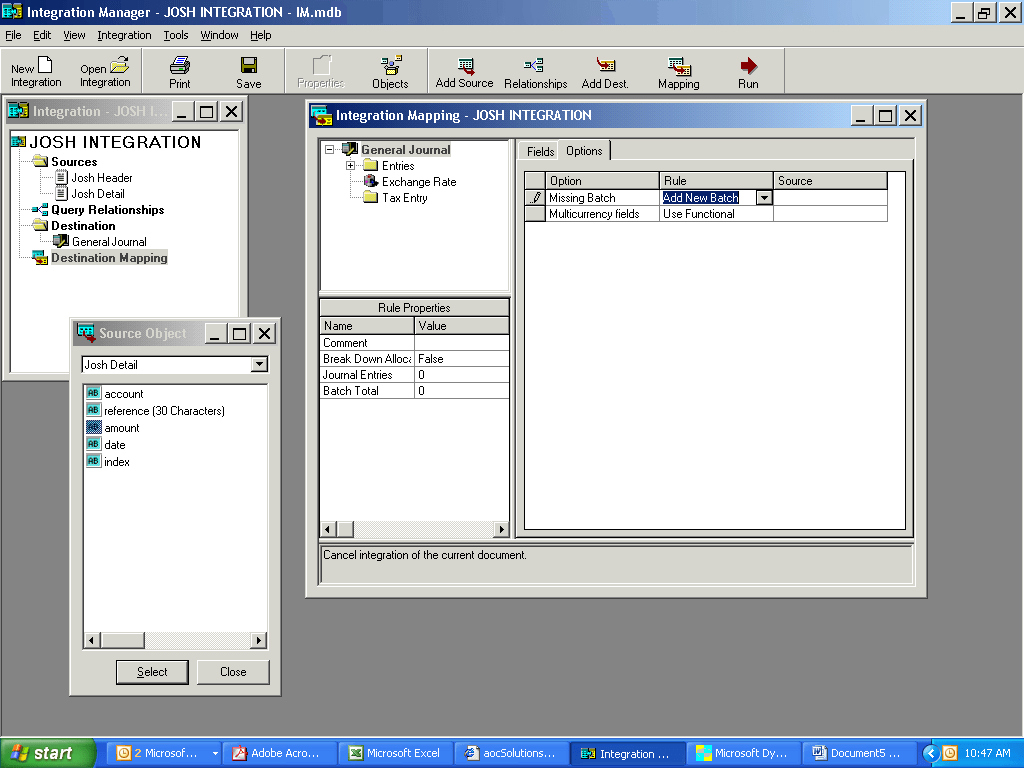
14. Switch to Options tab and select Missing Batch = Add New Batch:
15. Change to Entries > Fields and select the following:
- Account Number = Use Source Field – source object = account*
- Debit Amount = Use Positive Source – source object = amount*
- Credit Amount = Use Negative Source – source object = amount*
*These column names may vary based on your source file
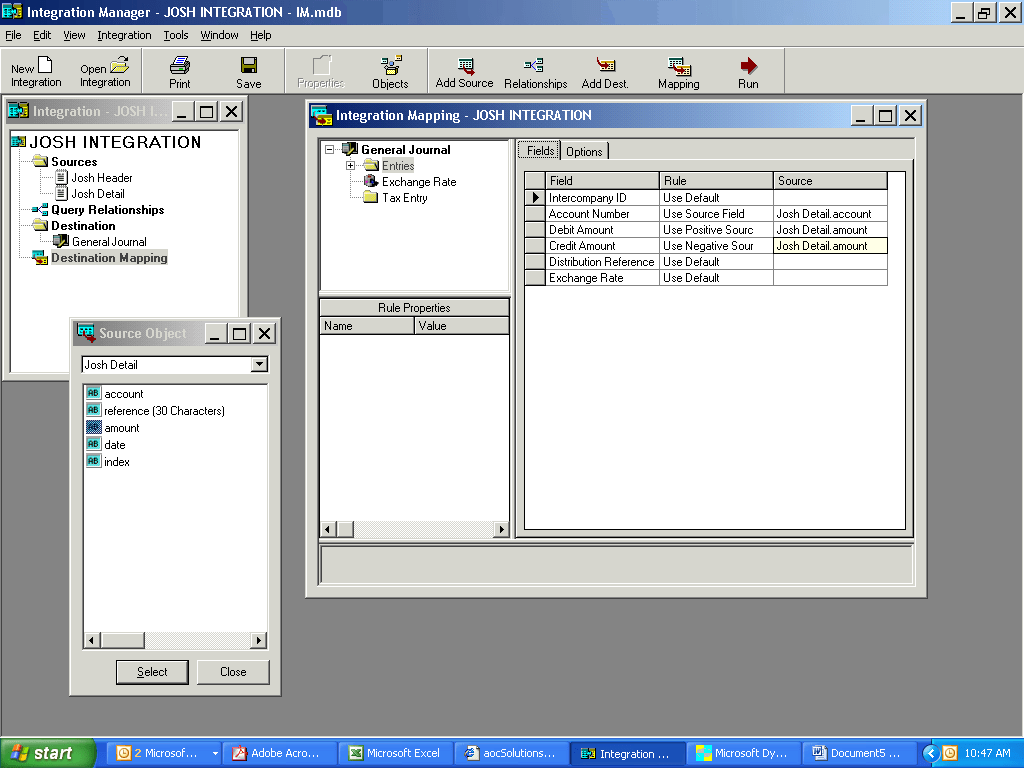
16. Save the integration.
17. Ensure that you’re logged into the correct GP company – we recommend you run into your Test database the first time.
18. Run.
Microsoft Dynamics GP
Navigating the complexities of Microsoft Dynamics GP and ensuring the seamless integration of financial data can be a daunting task. However, with the step-by-step guide outlined above, importing journal entries into Dynamics GP using Integration Manager and a .csv file becomes a manageable and straightforward process.
Remember, accuracy in your financial data import is key to maintaining the integrity of your financial management system. If you encounter challenges or need further assistance with your GP support and maintenance needs, do not hesitate to contact LBMC Technology Solutions. Our team of experts are dedicated to providing you with the support you need to optimize your Dynamics GP setup, ensuring your business operates efficiently and effectively. Reach out to LBMC Technology Solutions today for professional guidance and support tailored to your unique business requirements.